
Sierra Chart (DTC)
What it is
DTC (Data and Trading Communications) is the protocol Sierra Chart uses to connect to a trading/data server. WebAgent implements it as one of its client-facing interfaces, alongside the Real-Time GUI, the Remote Client API, and FIX, all backed by the same shared account, and all reachable on the same host/port (see Interfaces: Overview).
What's supported
- Session: Logon, Heartbeat, Logoff.
- Reference data: security definition lookup by symbol, symbol search.
- Market data: snapshot subscription (top-of-book) and depth subscription, both with live incremental updates.
- Order entry: submit new order, cancel order, cancel/replace order, flatten position. Order types: Market, Limit, Stop, Stop-Limit.
- Account/queries: open orders, current positions, account balance, trade accounts.
- History: historical order fills, historical price data.
Historical price data
Only intraday tick charts are supported; bar intervals (1-minute, daily, etc.) aren't served directly. Sierra Chart builds bars from the tick stream automatically once it has ticks for a symbol.
Connecting Sierra Chart
-
Global Settings → Data/Trade Service Settings. Set Service to DTC Service. Under Connection Details → Server Address, enter the host and port as a single
Address:Portvalue (e.g.myhost.example.com:11099). Host/port are specific to your deployment; self-hosted or fully managed, ask your account representative (or use whatever you configured yourself if self-hosting). It's the same host/port you'd use for the Remote Client API, FIX, or the Real-Time GUI. Under Service Settings, enter your account's Username and Password.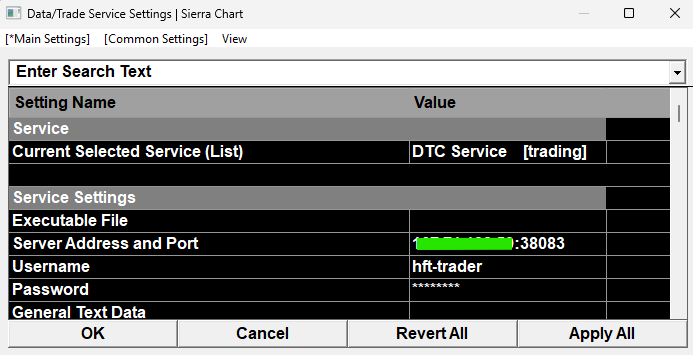
-
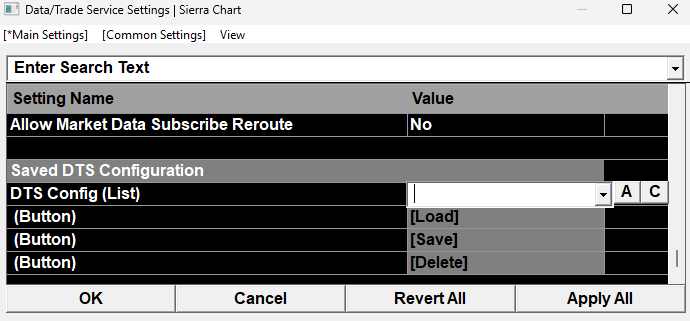
Save this configuration under a name. Under Main Settings → Saved DTS Configuration, type a name into the DTS Config box (e.g.
Nanoconda - Live) and press [Save]. Such a feature is especially useful when working with multiple servers (a second account, a paper/test deployment, and so on: configure that connection the same way (different Server Address/Username/Password), give it its own name, and [Save] it too. Use [Load] to switch which saved configuration is active, and [Delete] to remove one you no longer need.Note: this lets you store and switch between multiple named configurations within one Sierra Chart installation, but only one is active at a time per instance. If you need two servers connected simultaneously, run a separate Sierra Chart installation (its own folder) per connection; see Using Multiple Data and Trading Services at the Same Time.
-
Disable Trade Simulation Mode: on the main menu, Trade → Trade Simulation Mode On and make sure it is unchecked. This is a global, instance-wide toggle in Sierra Chart, not something you enable per-connection. Sierra Chart will not send live orders to a real trading service while it's checked, and the title bar shows
[Sim]while it's active. Sierra Chart does not support running Trade Simulation Mode and live trading in the same instance at the same time.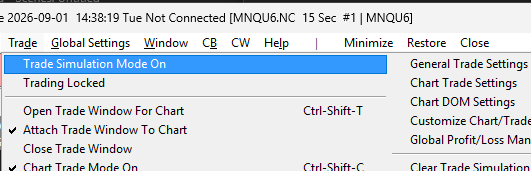
-
Connect. Once logged on, add the symbol to a chart or the Trade DOM as you normally would in Sierra Chart.
Disabling automatic reconnect and connect-on-start
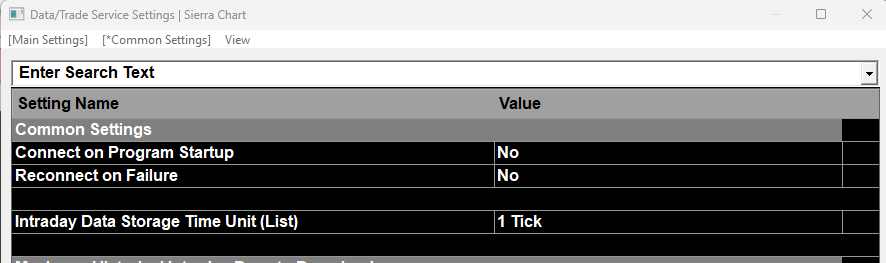
Two independent settings, both under Global Settings → Data/Trade Service Settings → Common Settings, control whether Sierra Chart connects to this service on its own:
- Connect on Program Startup: if Yes, Sierra Chart connects to this service automatically every time Sierra Chart itself starts. Set to No if you want to connect manually instead.
- Reconnect on Failure: if Yes, Sierra Chart keeps retrying the connection whenever it detects the connection was lost (or never succeeded in the first place). Set to No to disable automatic reconnection attempts entirely.
Turn both to No if you want full manual control over when Sierra Chart connects to your account, for example while testing, or if you specifically don't want Sierra Chart silently reconnecting and re-subscribing after a network blip.
Going back in time: clear local historical data first
Sierra Chart caches historical intraday/tick data locally per symbol. If the server's own history for a symbol ever moves backward (for example, a feed restart or replay that starts over from an earlier point in time than what Sierra Chart already has cached), Sierra Chart's local cache and the server's history are no longer describing the same timeline, and Sierra Chart will not reconcile this automatically.
If you know the server-side history has gone back in time for a symbol, clear that symbol's local data in Sierra Chart before reloading its chart, or you risk duplicate, missing, or out-of-order ticks in Sierra Chart's local view.
To clear it: right-click the chart where you want the redownload to begin from and select Delete and Download Data on the Chart Shortcut Menu. To fully remove a symbol's cached data file instead of just redownloading from a point, use File → New/Open Intraday Chart, select the symbol's data file in the list, and press Delete. After clearing, reload the chart to re-request history from WebAgent.
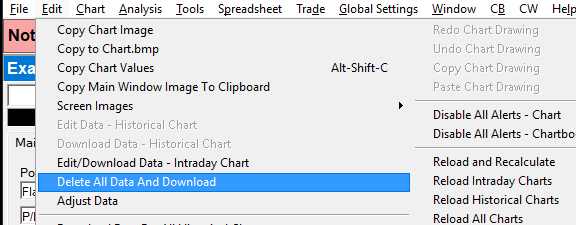
This is a Sierra Chart client-side caching behavior, not a WebAgent limitation: the server itself always serves its own current, correct history regardless of what any individual client has cached locally.