
Algo Control API
The Algo Control API allows you to launch, stop, configure, and monitor your algorithms in real time through a fully customizable GUI.
You define the structure, behavior, and appearance of the interface - including fields, buttons, layouts, and views - while the platform handles rendering and interaction.
Ready-made algos built on this API (market maker, spreader, smart orders) are described in Algo Framework; a complete application with its own GUI window in Boa Spreader.
Key Capabilities
-
Custom Fields
- Define your own field names and types
- Control how data is displayed in the GUI
- Separate input fields and real-time output fields
-
Custom Buttons
- Add buttons at both header and record (row) level
- Assign custom actions via callbacks
- Fully control behavior per button
-
Multiple Views
- Define multiple GUI views with different column visibility
- Allow users to filter and organize data dynamically
-
Real-Time Updates
- Push live data updates from your algo to the GUI
- Efficient binary transport for low-latency environments
Integration Steps
-
Implement the Listener
Implement the
nanoconda::listenerinterface and initialize thenanoconda::dmasessionto receive UI events:oncontrolaction(...)- header-level actionsonrecordaction(...)- row-level actions
-
Define the GUI Schema
Populate a
nanoconda::interfaceschemastructure:- Define input fields (user-configurable parameters)
- Define record fields (real-time application state)
- Configure buttons and layout
-
Handle User Actions
Process incoming UI actions in your listener implementation:
- Start / stop logic
- Parameter updates
- Custom button behavior
-
Send Real-Time Updates
Use
setdatareport()to push updates to the GUI:- Update field values
- Reflect current application state
- Maintain synchronization with UI
Callbacks
Callback Listener
Communication between the application and gui is implemented via callbacks from GUI (for example when a remote user presses a GUI button) and API calls (when application needs to update GUI for the remote user).
In order to receive GUI callbacks, user must implement a listener class and inherit nanoconda::listener and initialize a nanoconda::dmasession
struct myListener : nanoconda::listener
{
      void onschemarequest(interfaceschema* schema) { };
      void oncontrolaction(datainput* input, int buttonId, int viewId) { };
      void onrecordaction(datarecord* record, int buttonId, int viewId) { };

      unsigned short oncustomrequest(const char* data, unsigned short size, char* responsebuffer, unsigned short responsemaxsize) { return 0; };
   /*
   ...
   */
}

...

int main(int argc, char *argv[])
{
   /*...*/

   myListener* l = new myListener();

   /*...*/
   nanoconda::dmasession* session = nanoconda::dmasession::init(account, rcode, cpu);

   /*...*/

   /*...*/
}
GUI Schema
In order for GUI to display application custom fields user must define field descriptions (Schema). It must be done in onschemarequest callback which will be raised whenever a User Starts Algo Window in GUI. The interfaceschema* is passed as an argument and must be filled.
The user must populate:
- Field names and types
- Optionally: default, minimum, maximum and step values, if user inputs should be limited or controlled
   enum fieldType : unsigned char
   {
      NC_BLANK=0,
      NC_C=1,
      NC_UC=2,
      NC_S=3,
      NC_US=4,
      NC_I=5,
      NC_UI=6,
      NC_P=7,
      NC_STR=9,
      NC_LL=10,
      NC_ULL=11,
      NC_F=12,
      NC_ENUM=13
   };
      template <typename T> void setField(const char* name, fieldType type, T deflt, T min, T max, T step );
      void setField(const char* name, fieldType type);
Note
deflt, min, max, step must be of same type.
Drop-Down Inputs (NC_ENUM)
An input field of type NC_ENUM is shown in the Algo Window as a drop-down list. The value sent to the
application is the 0-based index of the selected item, stored like an NC_UC value and read with _uc().
To define a drop-down:
- Set the field as
NC_UCwith the default index, minimum 0, maximum (item count - 1) and step 1. - Change its type with
setType(NC_ENUM). - Write the item labels, separated by
|(for exampleOff|On), withnanoconda::enumLabelByte(field, i), which returns the address of label bytei. End the labels with a 0 byte.
Labels of up to 30 bytes fit in the field itself. Longer labels, up to ENUM_LABEL_BYTES (93), continue into the
next input field, which must then be left unused (NC_BLANK). Labels cannot be empty or contain |.
   const char labels[] = "Buy|Sell|Both";
   nanoconda::fieldDesc* f = &schema->inputFields[1];
   f->setField("Sides", nanoconda::NC_UC, (unsigned char) 2, (unsigned char) 0, (unsigned char) 2, (unsigned char) 1);
   f->setType(nanoconda::NC_ENUM);
   for (int i = 0; i < nanoconda::ENUM_LABEL_SLOT_BYTES; i++)
      *nanoconda::enumLabelByte(f, i) = i < (int) sizeof(labels) ? labels[i] : 0;
unsigned char sides = input->fields[1]._uc(); // 0 = Buy, 1 = Sell, 2 = Both
The Algo Framework sample includes a setEnum() helper (algos/framework.h) that does all of the
above, including labels longer than one field.
struct customField
{

   fieldType _type();
   char _c();
   unsigned char _uc();
   short _s();
   unsigned short _us();
   int _i();
   unsigned int _ui();
   long long _p();
   void _str(char* buffer);
   long long _ll();
   unsigned long long _ull();
   float _f();


   void _type(fieldType value);
   void _c(char value);
   void _uc(unsigned char value);
   void _s(short value);
   void _us(unsigned short value);
   void _i(int value);
   void _ui(unsigned int value);
   void _p (long long value);
   void _str(const char* value, int len); //max 7 bytes
   void _ll(long long value);
   void _ull(unsigned long long value);
   void _f(float value);

   char data[8];


};

enum hidemask : unsigned char
{
   NC_HIDE_FROM_NONE = 0b0000,
   NC_HIDE_FROM_VIEW1 = 0b0001,
   NC_HIDE_FROM_VIEW2 = 0b0010,
   NC_HIDE_FROM_VIEW3 = 0b0100,
   NC_HIDE_FROM_VIEW4 = 0b1000,
   NC_HIDE_FROM_ALL = NC_HIDE_FROM_VIEW1 | NC_HIDE_FROM_VIEW2 | NC_HIDE_FROM_VIEW3 | NC_HIDE_FROM_VIEW4,
   NC_SHOW_ONLY_VIEW1 = NC_HIDE_FROM_VIEW2 | NC_HIDE_FROM_VIEW3 | NC_HIDE_FROM_VIEW4,
   NC_SHOW_ONLY_VIEW2 = NC_HIDE_FROM_VIEW1 | NC_HIDE_FROM_VIEW3 | NC_HIDE_FROM_VIEW4,
   NC_SHOW_ONLY_VIEW3 = NC_HIDE_FROM_VIEW1 | NC_HIDE_FROM_VIEW2 | NC_HIDE_FROM_VIEW4,
   NC_SHOW_ONLY_VIEW4 = NC_HIDE_FROM_VIEW1 | NC_HIDE_FROM_VIEW2 | NC_HIDE_FROM_VIEW3

};
struct fieldDesc
{
   char name[24];
   char reserved[7];
   hidemask hideFrom;
   customField deflt;
   customField min;
   customField max;
   customField step;

   void setType(fieldType type)
   {
      deflt._type(type);
      min._type(type);
      max._type(type);
      step._type(type);
   }
   void setHideMask(hidemask hideMask)
   {
      hideFrom=hideMask;
   }
   template <typename T> void setField(const char* name, fieldType type, T deflt, T min, T max, T step );
   void setField(const char* name, fieldType type);
};


struct dataheader
{
   unsigned long long algoId;
   unsigned char algoIndex;
   hidemask hideFrom;
   unsigned char reserved2[6];
   unsigned long long symbolId;
   unsigned long long symbolId2;
   void setHideMask(hidemask hideMask)
   {
      hideFrom=hideMask;
   }
};


struct datainput : dataheader
{
   enum : unsigned short { MAX_DATA_INPUT_FIELDS = 50 };

   customField fields[MAX_DATA_INPUT_FIELDS];
};

struct datarecord : dataheader
{
   enum : unsigned short { MAX_DATA_RECORD_FIELDS = 20 };

   customField fields[MAX_DATA_RECORD_FIELDS];
};

struct datareport
{
   enum : unsigned short { MAX_RECORDS = 40 };
   enum : unsigned short { MAX_HEADER_FIELDS = 20 };

   unsigned short recordCount;

   unsigned short reserved1;
   unsigned short reserved2;
   unsigned short reserved3;
   customField headerFields[MAX_HEADER_FIELDS];

   datarecord records[MAX_RECORDS];
};

struct algoreport : datareport { };

enum uicolor : unsigned char
{
   NC_BC_HIDDEN=0,
   NC_BC_BLUE=1,
   NC_BC_GREEN=2,
   NC_BC_CYAN=3,
   NC_BC_RED=4,
   NC_BC_MAGENTA=5,
   NC_BC_BROWN=6,
   NC_BC_GREY=7,
   NC_BC_YELLOW=8,
   NC_BC_ORANGE=9
};

struct actionbutton
{
   char name[14];
   uicolor color;
   hidemask hideFrom;

   void setButton(const char* name, uicolor usercolor, hidemask mask = NC_HIDE_FROM_NONE);

};


struct interfaceschema
{

   enum : unsigned short { MAX_HEADER_BUTTONS = 20 };
   enum : unsigned short { MAX_RECORD_BUTTONS = 20 };

   unsigned char reserved[8];

   actionbutton headerButtons[MAX_HEADER_BUTTONS];
   actionbutton recordButtons[MAX_RECORD_BUTTONS];

   fieldDesc headerFields[datareport::MAX_HEADER_FIELDS];

   fieldDesc inputFields[datainput::MAX_DATA_INPUT_FIELDS];

   fieldDesc recordFields[datarecord::MAX_DATA_RECORD_FIELDS];

};
symbolId is the instrument selected in the Algo Window. symbolId2 is the optional second instrument
(Instrument 2 in the Algo Window input), for algos that trade two instruments such as a spread; it is 0
when no second instrument is selected.
Example Schema call
Here is an example for creating a schema with custom Header fields, Header buttons, Input Fields and Algo report columns. Each of the fields and buttons can be masked / hidden from another view, allowing for multiple fully custom views. In this example we show a scenario where view 1 is used to launch customer algos, and view 2 is used to Edit already launched algos.
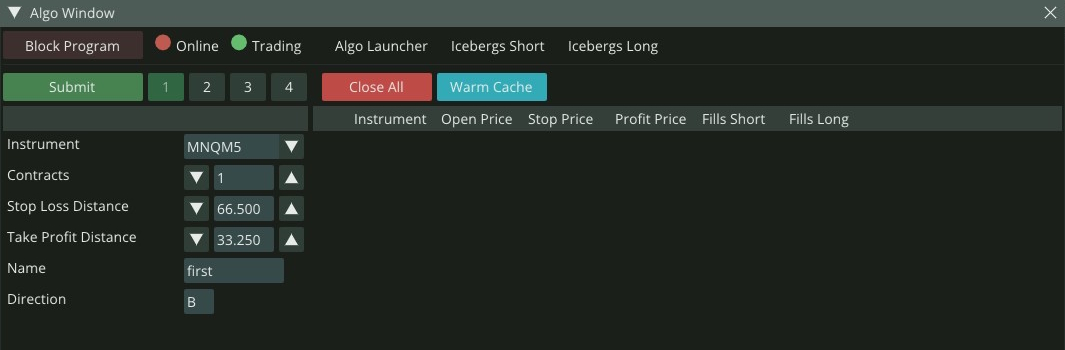
The below code produced the Schema:
void onschemarequest(nanoconda::interfaceschema* schema)
{

   //header fields
   //View 1 Header fields
   schema->headerFields[0].setField("Algo Launcher", nanoconda::NC_I, 1, 0, 100, 1);
   schema->headerFields[0].setHideMask(NC_SHOW_ONLY_VIEW1);
   schema->headerFields[1].setField("Icebergs Short", nanoconda::NC_I, 1, 0, 100, 1);
   schema->headerFields[1].setHideMask(NC_SHOW_ONLY_VIEW1);
   schema->headerFields[2].setField("Icebergs Long", nanoconda::NC_I, 1, 0, 100, 1);
   schema->headerFields[2].setHideMask(NC_SHOW_ONLY_VIEW1);

   //View 2 Header Field
   schema->headerFields[3].setField("Algo Editor", nanoconda::NC_I, 1, 0, 100, 1);
   schema->headerFields[3].setHideMask(NC_SHOW_ONLY_VIEW2);

   //Header buttons
   schema->headerButtons[0].setButton("Close All", NC_BC_RED);

   //View 1 Header Buttons
   schema->headerButtons[1].setButton("Warm Cache", NC_BC_CYAN, NC_SHOW_ONLY_VIEW1);

   //View 2 Header Buttons
   schema->headerButtons[2].setButton("Reverse All", NC_BC_BLUE, NC_SHOW_ONLY_VIEW2);
   schema->headerButtons[3].setButton("Block New", NC_BC_ORANGE, NC_SHOW_ONLY_VIEW2);


   //Record buttons
   schema->recordButtons[0].setButton("X",NC_BC_RED);

   //View 2 Record buttons
   schema->recordButtons[1].setButton("W",NC_BC_CYAN,NC_SHOW_ONLY_VIEW2);
   schema->recordButtons[2].setButton("R",NC_BC_BLUE,NC_SHOW_ONLY_VIEW2);
   schema->recordButtons[3].setButton("B",NC_BC_ORANGE,NC_SHOW_ONLY_VIEW2);

   //Input Fields (Left Panel)
   schema->inputFields[0].setField("Contracts", nanoconda::NC_I, 1, 0, 100, 1);
   //View 1 Input Fields
   schema->inputFields[1].setField("Stop Loss Distance", nanoconda::NC_P, 0, 0, 1000, 1);
   schema->inputFields[1].setHideMask(NC_SHOW_ONLY_VIEW1);
   schema->inputFields[2].setField("Take Profit Distance", nanoconda::NC_P, 0, 0, 1000, 1);
   schema->inputFields[2].setHideMask(NC_SHOW_ONLY_VIEW1);
   schema->inputFields[3].setField("Name", nanoconda::NC_STR);
   schema->inputFields[3].setHideMask(NC_SHOW_ONLY_VIEW1);
   schema->inputFields[4].setField("Direction", nanoconda::NC_C);
   schema->inputFields[4].setHideMask(NC_SHOW_ONLY_VIEW1);

   //View 2 Input Fields
   schema->inputFields[5].setField("Move Stop By", nanoconda::NC_P, 0, 0, 1000, 1);
   schema->inputFields[5].setHideMask(NC_SHOW_ONLY_VIEW2);
   schema->inputFields[6].setField("Move Profit By", nanoconda::NC_P, 0, 0, 1000, 1);
   schema->inputFields[6].setHideMask(NC_SHOW_ONLY_VIEW2);

   schema->inputFields[49].setField("Last Field", nanoconda::NC_P, 0, 0, 1000, 1);


   //Algo Report Fields
   schema->recordFields[0].setField("Instrument", nanoconda::NC_STR);
   schema->recordFields[1].setField("Open Price", nanoconda::NC_F);
   schema->recordFields[2].setField("Stop Price", nanoconda::NC_F);
   schema->recordFields[3].setField("Profit Price", nanoconda::NC_F);

   //View 1 Report Fields
   schema->recordFields[4].setField("Fills Short", nanoconda::NC_I);
   schema->recordFields[4].setHideMask(NC_SHOW_ONLY_VIEW1);
   schema->recordFields[5].setField("Fills Long", nanoconda::NC_I);
   schema->recordFields[5].setHideMask(NC_SHOW_ONLY_VIEW1);

   //View 2 Report Fields
   schema->recordFields[6].setField("Algo Pnl", nanoconda::NC_F);
   schema->recordFields[6].setHideMask(NC_SHOW_ONLY_VIEW2);
   schema->recordFields[7].setField("Algo Status", nanoconda::NC_STR);
   schema->recordFields[7].setHideMask(NC_SHOW_ONLY_VIEW2);
   schema->recordFields[8].setField("Was Edited", nanoconda::NC_STR);
   schema->recordFields[8].setHideMask(NC_SHOW_ONLY_VIEW2);

}
Communicating with the application
Once Schema is displayed user can set input parameters on the left and press either Submit or one of the custom Header buttons. Whenever 'Submit' or a Header Button is clicked user application will receive the oncontrolaction() callback with all input information plus buttonId and viewId of the button. Submit button is passed as a special buttonId=21.
Here is a sample implementation of submitting an algoreport back to the gui immediately inside oncontrolaction().
void oncontrolaction(datainput* input, int buttonId, int viewId) {

   printf("oncontrolaction buttonId %d viewId %d\n", buttonId, viewId);


   unsigned long long symbolId = input->symbolId;

   _areport.recordCount = 2;
   _areport.headerFields[1]._i(100);
   _areport.headerFields[2]._i(123);


   // Record 1
   nanoconda::* adata = &_areport.records[0];


   adata->symbolId = symbolId;
   adata->algoId = 1001;
   adata->fields[0]._str( "MNQM5",5);
   adata->fields[1]._p( 2756675000);
   adata->fields[2]._p( 2750000000);
   adata->fields[3]._p( 2760000000);
   adata->fields[4]._i( 0);
   adata->fields[5]._i( 1);
   adata->fields[6]._p( 12000000);
   adata->fields[7]._str( "ON",2);
   adata->fields[8]._c('N');

   // Record 2
   adata = &_areport.records[1];

   adata->symbolId = symbolId;
   adata->algoId = 1002;
   adata->fields[0]._str( "MNQM5", 5);
   adata->fields[1]._p( 2758075000);
   adata->fields[2]._p( 2754000000);
   adata->fields[3]._p( 2761000000);
   adata->fields[4]._i( 1);
   adata->fields[5]._i( 0);
   adata->fields[6]._p( -1000000);
   adata->fields[7]._str( "STOPPED",7);
   adata->fields[8]._c('Y');

   if(_session)
   {
      _session->setdatareport(&_areport); //can update report from anywhere (another thread)
   }

};
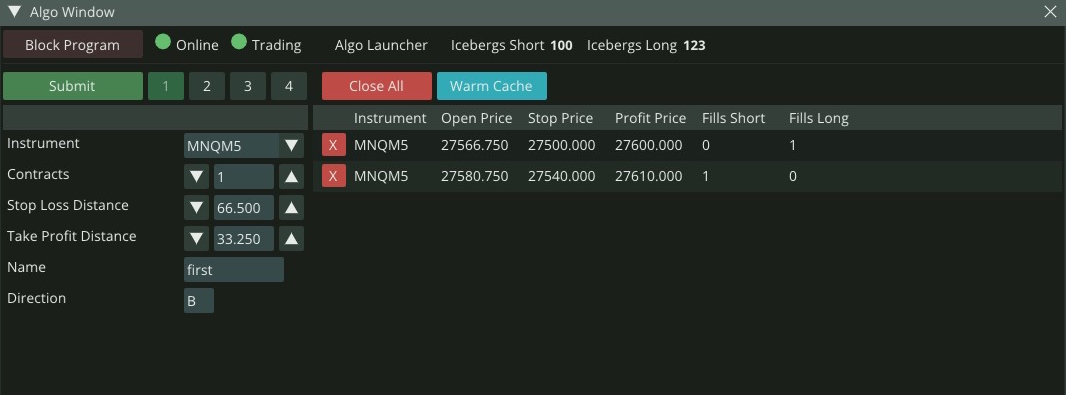
Records Buttons
Whenever a button is pressed on any of the records onrecordaction() callback will be raised. datarecord object will contain information of the record and buttonId and viewId will be passed to the callback.
Here is a minimal implementation of onrecordaction() that logs the record and button that were pressed.
void onrecordaction(datarecord* record, int buttonId, int viewId) {
   printf("onrecordaction algoId %llu buttonId %d viewId %d\n", record->algoId, buttonId, viewId);
};
Note
There are no requirements to how oncontrolaction() or onrecordaction() callbacks should be implemented. They serve as communication with a remote GUI user. For example, a user can ignore some callbacks completely or create / delete multiple algo report lines in a single callback.
Updating Algo Report
We gave some examples on how to update GUI via calling setdatareport() with information about new and deleted algos in previous sections.
The beauty of setdatareport() is that it can be called from anywhere in your algo code. For example, on order confirmations, executions or book updates. This can help pass real-time updates for each algo. Some useful information might be the real-time PNL of a specific algo or average price.
Gui data refresh rate is 4x a second, so there is no need to call setdatareport() more frequently (even though it is allowed).
A recommended approach to updating the GUI state is to have a separate thread that periodically updates the GUI with user internally kept algoreport:
pthread_t gui_pub_thread;
pthread_create(&gui_pub_thread, NULL, guiPublisher, myListener);

...


void* guiPublisher(void* data)
{
    myListener* l = (myListener*) myListener;
    if(!l) return NULL;
    if(!l->_session) return NULL;

    while (1) {
       l->_session->setdatareport(&l->_areport)
       usleep(250000); //sleep for 250 milliseconds
    }
    return NULL;
}
Sample Program: algodriver.cpp
The Nanoconda package includes a sample program with the above functionality in src/algodriver.cpp.
Here is the explanation of how algodriver.cpp generated the following Algo Window in GUI:
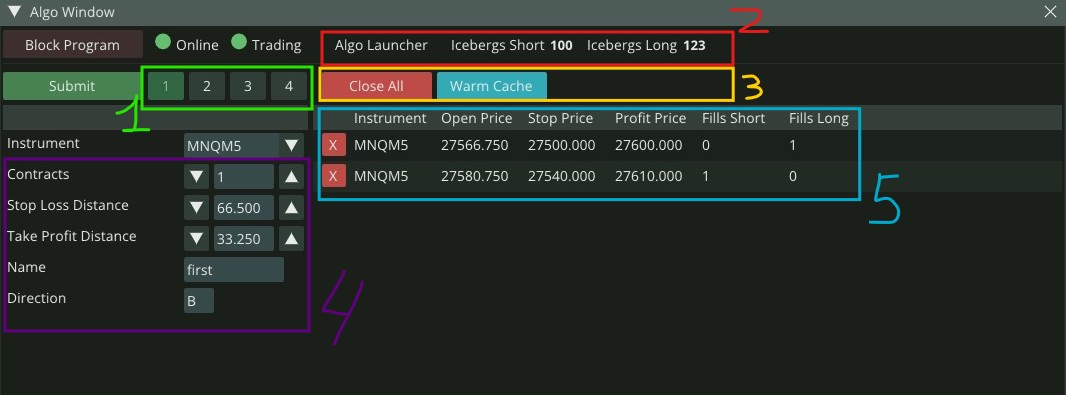
1. View Selector
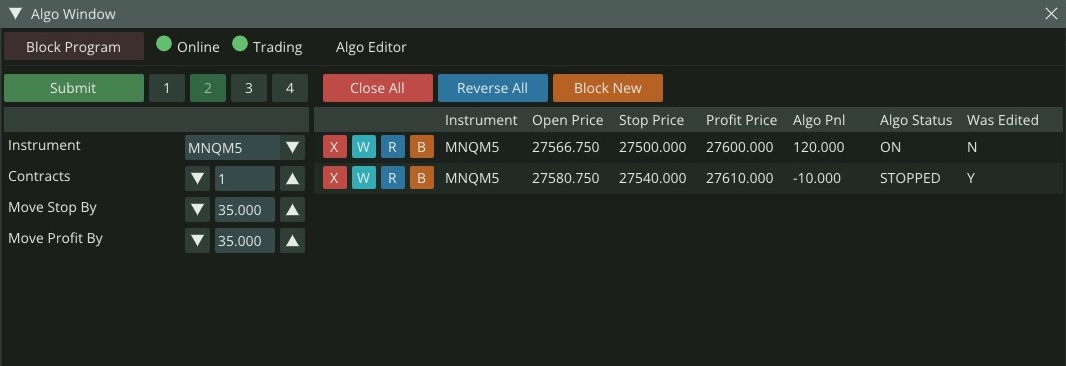
Select between 4 distinct views and use setHideMask to decide which buttons, fields and records are visible on which view.
Here is how View #2 looks like for algodriver.cpp:
2. Header Fields
//header fields
//View 1 Header fields
schema->headerFields[0].setField("Algo Launcher", nanoconda::NC_I, 1, 0, 100, 1);
schema->headerFields[0].setHideMask(NC_SHOW_ONLY_VIEW1);
schema->headerFields[1].setField("Icebergs Short", nanoconda::NC_I, 1, 0, 100, 1);
schema->headerFields[1].setHideMask(NC_SHOW_ONLY_VIEW1);
schema->headerFields[2].setField("Icebergs Long", nanoconda::NC_I, 1, 0, 100, 1);
schema->headerFields[2].setHideMask(NC_SHOW_ONLY_VIEW1);

//View 2 Header Field
schema->headerFields[3].setField("Algo Editor", nanoconda::NC_I, 1, 0, 100, 1);
schema->headerFields[3].setHideMask(NC_SHOW_ONLY_VIEW2);
3. Header Buttons
//header fields
//View 1 Header fields
schema->headerFields[0].setField("Algo Launcher", nanoconda::NC_I, 1, 0, 100, 1);
schema->headerFields[0].setHideMask(NC_SHOW_ONLY_VIEW1);
schema->headerFields[1].setField("Icebergs Short", nanoconda::NC_I, 1, 0, 100, 1);
schema->headerFields[1].setHideMask(NC_SHOW_ONLY_VIEW1);
schema->headerFields[2].setField("Icebergs Long", nanoconda::NC_I, 1, 0, 100, 1);
schema->headerFields[2].setHideMask(NC_SHOW_ONLY_VIEW1);

//View 2 Header Field
schema->headerFields[3].setField("Algo Editor", nanoconda::NC_I, 1, 0, 100, 1);
schema->headerFields[3].setHideMask(NC_SHOW_ONLY_VIEW2);
4. Input Fields
//Input Fields (Left Panel)
schema->inputFieldCount = 7;
schema->inputFields[0].setField("Contracts", nanoconda::NC_I, 1, 0, 100, 1);
//View 1 Input Fields
schema->inputFields[1].setField("Stop Loss Distance", nanoconda::NC_P, 0, 0, 1000, 1);
schema->inputFields[1].setHideMask(NC_SHOW_ONLY_VIEW1);
schema->inputFields[2].setField("Take Profit Distance", nanoconda::NC_P, 0, 0, 1000, 1);
schema->inputFields[2].setHideMask(NC_SHOW_ONLY_VIEW1);
schema->inputFields[3].setField("Name", nanoconda::NC_STR);
schema->inputFields[3].setHideMask(NC_SHOW_ONLY_VIEW1);
schema->inputFields[4].setField("Direction", nanoconda::NC_C);
schema->inputFields[4].setHideMask(NC_SHOW_ONLY_VIEW1);

//View 2 Input Fields
schema->inputFields[5].setField("Move Stop By", nanoconda::NC_P, 0, 0, 1000, 1);
schema->inputFields[5].setHideMask(NC_SHOW_ONLY_VIEW2);
schema->inputFields[6].setField("Move Profit By", nanoconda::NC_P, 0, 0, 1000, 1);
schema->inputFields[6].setHideMask(NC_SHOW_ONLY_VIEW2);
5. Data Records Buttons and Columns
//Record buttons
schema->recordButtons[0].setButton("X",NC_BC_RED);

//View 2 Record buttons
schema->recordButtons[1].setButton("W",NC_BC_CYAN,NC_SHOW_ONLY_VIEW2);
schema->recordButtons[2].setButton("R",NC_BC_BLUE,NC_SHOW_ONLY_VIEW2);
schema->recordButtons[3].setButton("B",NC_BC_ORANGE,NC_SHOW_ONLY_VIEW2);


//Data Report Fields
schema->recordFieldCount = 9;
schema->recordFields[0].setField("Instrument", nanoconda::NC_STR);
schema->recordFields[1].setField("Open Price", nanoconda::NC_F);
schema->recordFields[2].setField("Stop Price", nanoconda::NC_F);
schema->recordFields[3].setField("Profit Price", nanoconda::NC_F);

//View 1 Report Fields
schema->recordFields[4].setField("Fills Short", nanoconda::NC_I);
schema->recordFields[4].setHideMask(NC_SHOW_ONLY_VIEW1);
schema->recordFields[5].setField("Fills Long", nanoconda::NC_I);
schema->recordFields[5].setHideMask(NC_SHOW_ONLY_VIEW1);

//View 2 Report Fields
schema->recordFields[6].setField("Algo Pnl", nanoconda::NC_F);
schema->recordFields[6].setHideMask(NC_SHOW_ONLY_VIEW2);
schema->recordFields[7].setField("Algo Status", nanoconda::NC_STR);
schema->recordFields[7].setHideMask(NC_SHOW_ONLY_VIEW2);
schema->recordFields[8].setField("Was Edited", nanoconda::NC_STR);
schema->recordFields[8].setHideMask(NC_SHOW_ONLY_VIEW2);
The Actual 2 lines in the algo records were populated with dummy data like this:
_areport.recordCount = 2;
_areport.headerFields[1]._i(100);
_areport.headerFields[2]._i(123);


// Record 1
nanoconda::* adata = &_areport.records[0];


adata->symbolId = symbolId;
adata->algoId = 1001;
adata->fields[0]._str( "MNQM5",5);
adata->fields[1]._p( 2756675000);
adata->fields[2]._p( 2750000000);
adata->fields[3]._p( 2760000000);
adata->fields[4]._i( 0);
adata->fields[5]._i( 1);
adata->fields[6]._p( 12000000);
adata->fields[7]._str( "ON",2);
adata->fields[8]._c('N');

// Record 2
adata = &_areport.records[1];

adata->symbolId = symbolId;
adata->algoId = 1002;
adata->fields[0]._str( "MNQM5", 5);
adata->fields[1]._p( 2758075000);
adata->fields[2]._p( 2754000000);
adata->fields[3]._p( 2761000000);
adata->fields[4]._i( 1);
adata->fields[5]._i( 0);
adata->fields[6]._p( -1000000);
adata->fields[7]._str( "STOPPED",7);
adata->fields[8]._c('Y');

if(_session)
{
   _session->setdatareport(&_areport); //can update report from anywhere (another thread)
}
Sample Algo: Brackets
The Nanoconda package includes a sample trading algorithm called Brackets. This algo is designed as a simple example to demonstrate how to build trading strategies using the Nanoconda API. It is also a useful template for developers starting custom algo development.
The Brackets algo extends the base prototype defined in:
Behavior
When launched from the GUI, the Brackets algo performs the following cycle:
- Sends a Market order in the direction selected by the user.
-
After the fill is confirmed, it sends a bracket consisting of:
- One Limit order (take profit)
- One Stop Loss order (risk protection)
-
When either of the bracket orders is filled:
- The position is fully closed
- The algo immediately restarts the cycle by opening a new position with another Market order
This shows how an algo can remain continuously active until explicitly stopped by the user.
Note
The Brackets algo is intended as a reference implementation only. Its logic is fully customizable. Users are free to:
- Modify the trading workflow
- Configure custom bracket logic
- Add risk or position sizing rules
- Control when algo lines are added or removed in the GUI
- Maintain any number of simultaneous algo instances
Tip
The above logic is all implemented inside the client code and is fully custom. The user is free to choose how many algo lines are present in the report and when any line is added or removed.
Starting the Algo
To compile bracketsalgo please execute the following commands:
Usage: ./bracketsalgo -e exchange -s symbol1,symbol2,... -u username -p password [-a account] [-c cpu]

./bracketsalgo -e XCME -s ESM5,NQM5 -u hftclient -p password -a hftclientAcc100
Note
Please replace command line arguments for your use case.
GUI Controls
The Brackets algo can be controlled directly from the Nanoconda GUI:
| Action | Description |
|---|---|
| Launch | Starts the algo and begins trading |
| X (Stop) | Stops the algo and closes open positions safely |
| Remove | Clicking X again when status is CANCEL removes it from the report |
Tip
After stopping, the algo status transitions to CANCEL, but it remains visible so the user can review metrics such as algo P&L and lifecycle events.
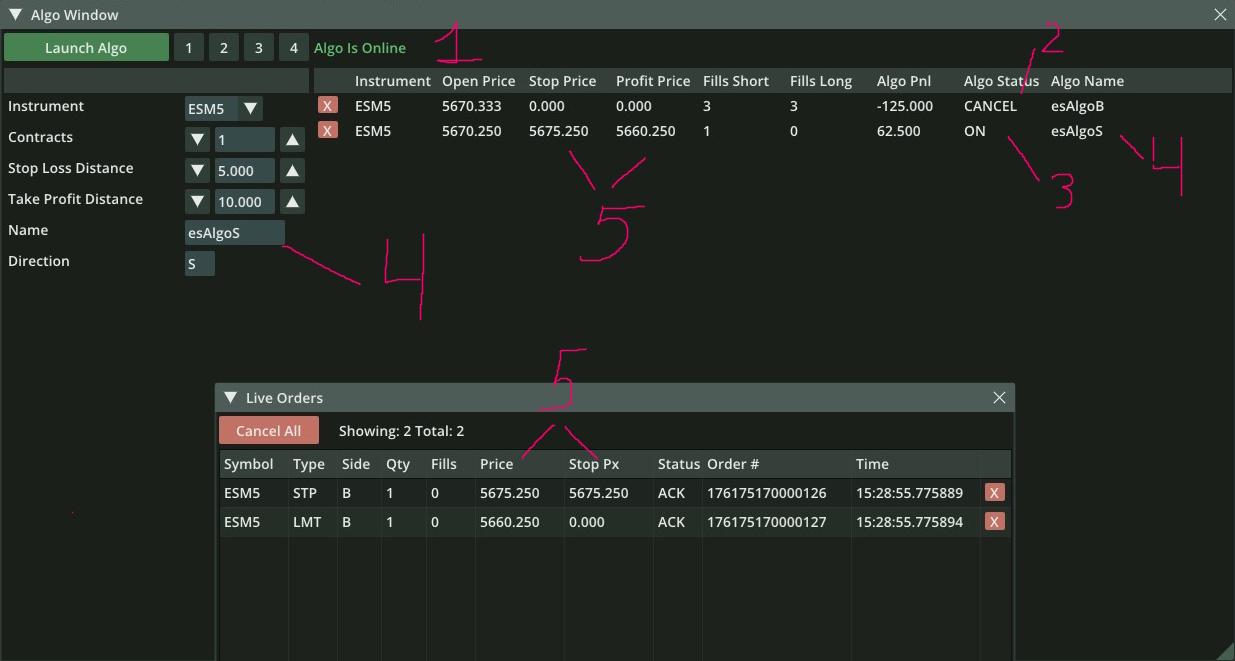
Notes:
Algo is Onlineindicates that the application is running and connected.- The first row shows Algo Status = CANCEL, meaning this algo was stopped via the API.
- The second row shows Algo Status = ON, meaning the algo is currently active and trading.
- Custom algo
Names were provided at launch to clearly identify which algo trades in which direction. - The active algo has linked Stop and Profit orders visible, and these can also be confirmed in the
Live Orderswindow.
Sample Algo: Market Maker
The Nanoconda package includes a sample market maker in src/marketmaker.cpp. Its trading rules are in the shared
headers src/algos/marketmaker.h (quote prices, levels, sticky ticks, the quote ladder), src/algos/ordercore.h
(orders, pacing, acks and fills) and src/algos/hostcore.h (session, market data and order events); marketmaker.cpp itself only connects them to the Algo Window. For each instrument it keeps a
ladder of buy and sell quotes around the best bid / best ask and moves them as the market changes, with optional
adverse-selection protection (pull after fill, exchange delay, pull on request limit). It is controlled
from the Algo Window and shows market data, order entry, pre-trade risk, message pacing, fills, position and flatten
in one short program.
Note
The market maker is a reference implementation for learning the API, not a profitable strategy.
Starting the Algo
cd src/
make marketmaker
./marketmaker -e XCME -s <symbol1>,<symbol2> -u <username> -p <password> -a <account> [-c <cpu>] [-L <level>]
-L (or --log-level) sets the log level of marketmaker.log: critical, error, warn, info, debug (default) or trace. Routine order lines (NEW, REPLACE, CANCEL, ACK, REPLACED) are debug; fills, state changes, hedges and settings are info; risk rejects, exchange rejects, external cancels and other anomalies are warn.
marketmaker.cpp includes algos/hostcore.h and algos/marketmaker.h, so keep the src/algos/ directory next to it when you build.
Select a subscribed instrument in the Algo Window, fill in the inputs and press Submit. Each instrument gets one
report line; pressing Submit again updates its parameters. All actions are logged to marketmaker.log.
Screenshot placeholder
Algo Window with running market makers: input panel, report lines, header fields and buttons.
File: assets/Nanoconda-MarketMaker-AlgoWindow.jpg
Inputs
Inputs in the order the Algo Window shows them. The protection inputs (from Pull Pause µs) are off by default and work as described in Adverse-Selection Protection. All protection times are in microseconds (µs): 1 ms = 1,000 µs.
| Input | Default | Range | Description |
|---|---|---|---|
| Quote Qty | 1 | 1-1000 | Size of each quote. |
| Ticks Away | 0 | 0-100 | Distance of the best quotes from the best bid / ask (0 = join). |
| Max Position | 5 | 1-10000 | Position limit of the line, including working orders. |
| Fair Levels (0=mid) | 0 | 0-10 | Fair value the quotes are built from: 0 mid price (best bid + best ask) / 2, sizes ignored; 1 weighted mid of the top level (microprice); 2-10 weighted over this many book levels. Quotes are Ticks Away plus half a tick from the fair value; with 1 or more a lopsided book leans the side about to be run over back one tick. |
| Skew Ticks/Fill (0=off) | 0 | 0-100 | Shifts both sides away from the inventory by N ticks per filled quote. |
| Min Edge Ticks (0=off) | 0 | 0-1000 | The closing side is never priced worse than average price +/- N ticks (a limit: short, the bid is never above average - N; long, the offer never below average + N). It is requoted at once when the position fills; otherwise it quotes normally and follows the market with Sticky Ticks, never beyond the limit. |
| Stop Ticks (0=off) | 0 | 0-10000 | Flattens and disables when the market is N ticks against the line's average price. |
| Levels / Level Step Ticks | 1 / 1 | 1-5 / 1-100 | Number of quotes per side and the distance between them. |
| Level Qty Step (+/-) | 0 | -1000-1000 | Lots added at each deeper level (like Hummingbot's order level amount): level N quotes Quote Qty + (N - 1) x this. Negative values make deeper levels smaller; a level below 1 lot is not quoted. Levels are added from the best price outward only while their total fits in Max Position; the largest level must fit the clip size. |
| Sticky Ticks (0=off) | 0 | 0-100 | Tolerance band: a working quote stays while it is at most N ticks from its target price, behind the market or closer to it; further away, it moves. Never held at or through the market. Typical: 0 or 1. |
| Vol % (0=off) | 0 | 0-1000 | Widens the quotes in a fast market: extra Ticks Away = ticks the mid moved in the last second x Vol % / 100, rounded down, on both sides. Widening requotes at once; narrowing follows Sticky Ticks. |
| Max Spread (0=off) | 0 | 0-1000 | Cancel both sides while the market spread is wider than this many ticks; quote again as soon as it is back. |
| Trade Flow (0=off) | 0 | 0-100 | Shift both quotes up to this many ticks toward the aggressive trade flow of the last second: full shift when all aggressive volume (10 lots or more) was on one side. Buying pressure moves the quotes up. |
| Max Msgs/Sec (0=off) | 0 | 0-1024 | New orders and replaces per second for this line (the total of all lines should stay below the server throttle). |
| Pull Pause µs | 500000 | 0-60000000 | How long a side stays cancelled after Pull After Fill or an exchange delay. |
| Keep Closing (1/0) | 1 | 0-1 | 1: when a protection cancels the side that closes the position, its orders are kept, best price first, up to the position size. |
| Pull After Fill (1/0) | 0 | 0-1 | 1: after a fill, the filled side is cancelled; it quotes again with new orders once its best market price has not moved against the fill for Pull Pause µs. |
| Pull On Limit (1/0) | 0 | 0-1 | 1: when the server refuses a request with REQUEST_LIMIT, all quotes are cancelled for the 1-second send pause, then quoted again with new orders. |
| Max Exch Delay µs | 0 | 0-60000000 | Cancel both sides for Pull Pause µs when a book update or trade shows exchange time - transaction time above this; 0 = off. |
Protections cancel quotes and quote the side again with new orders when they end. While a side is cancelled, its
Buy Px / Sell Px shows 0 and Status stays RUNNING.
GUI Controls
| Button | Description |
|---|---|
| Start | Start quoting. |
| Disable | Cancel quotes and flatten the line's position with market orders (split by clip size). If it is not flat after 5 seconds the line stops in ERROR (FLATERR). Disable All (header) does this for every line. |
| W / N | Widen / narrow the quotes by 1 tick. Both sides are re-quoted at once, also while Sticky Ticks would hold them. |
| B / S | Shift both sides 1 tick towards buying / selling, at once, also while Sticky Ticks would hold them. |
| Remove | Remove a stopped line from the report. |
The report shows Status, Info (why a line is not quoting, e.g. NO MKT, EXT CXL, STOP LS),
Buy Px / Sell Px, Position and PnL; the header shows session P&L, order counts, fills and the last reject code.
Screenshot placeholder
Live Orders window next to the Algo Window, showing a 3-level ladder on each side.
File: assets/Nanoconda-MarketMaker-Ladder.jpg
Warning
On exit (Ctrl-C) the program cancels its own working orders, but does not flatten the position; press Disable All first to end flat. Instrument trading state (pre-open / halt) is not handled by the sample.
Each line counts only its own orders and fills: its position, average price and P&L come from the fills of its own
orders since the program started. Orders and positions from manual trading, other programs or a previous run are
ignored and never cancelled or flattened. If one of the line's orders is cancelled by anyone else, the line stops
quoting (DISABLD, Info EXT CXL).