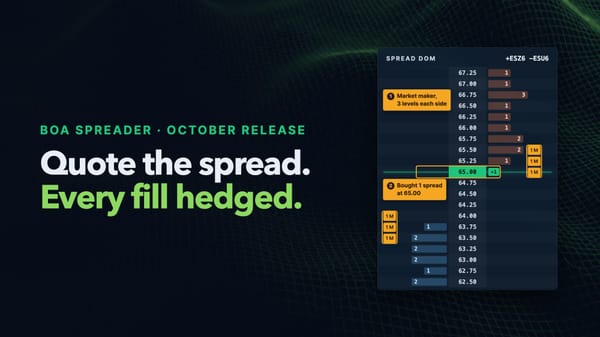
Nanoconda Algo Control API Now Supports Fully Dynamic GUI Generation

One problem eventually shows up in almost every serious HFT environment. The strategy evolves faster than the tooling around it.
New risk controls get added. New diagnostics become necessary. Traders want different controls exposed. Operations wants more visibility. Developers want internal metrics during live sessions.
Traditionally, this turns into a constant cycle of frontend work, internal tooling, terminal workflows, and operational patches just to keep the GUI aligned with production requirements.
With the latest Nanoconda release, we decided to approach the problem differently.
Instead of trying to constantly keep up with your requirements, we let you fully customize the GUI instantly through the API itself.
The Algo Control API and Algo Window have been completely reworked into a fully dynamic interface layer where the strategy defines how the GUI behaves and what it displays.
The GUI is no longer treated as a hardcoded frontend that occasionally receives updates. Fields, buttons, actions, layouts, visibility, and views are all configured directly by the algo itself.
When the algo restarts, the GUI immediately reflects the new structure.
That means if a strategy suddenly needs a new operational control, new diagnostics, or new live metrics, there is no separate frontend project waiting behind it. The strategy exposes the functionality directly and the GUI adapts automatically.
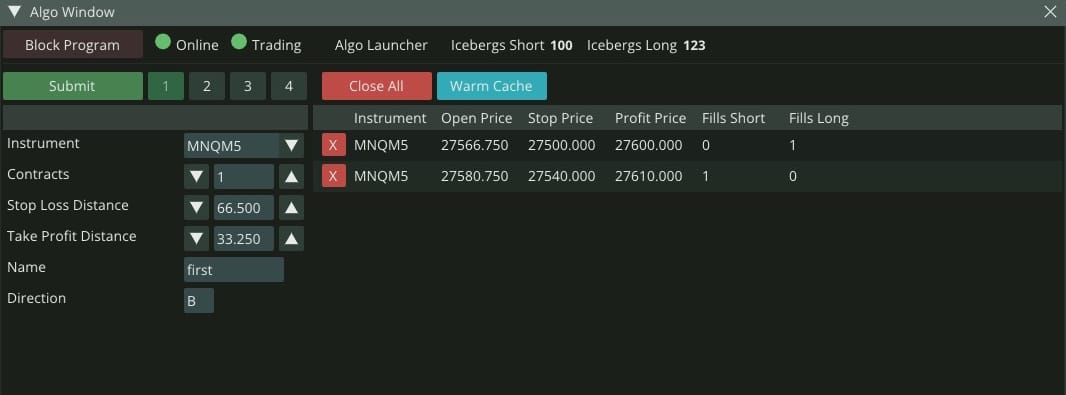
One of the biggest additions is support for fully customizable buttons and colors throughout the interface. Header-level controls and per-record actions can now be dynamically created directly from the API, allowing trading systems to expose workflows that actually match how they operate in production.
Instead of generic start and stop controls, firms can now build interfaces that expose flatten actions, quoting controls, diagnostics, mode switches, reset actions, or operational safeguards directly inside the trading window itself.
The GUI starts behaving more like an actual trading operations console built for your team.
Multiple GUI Views
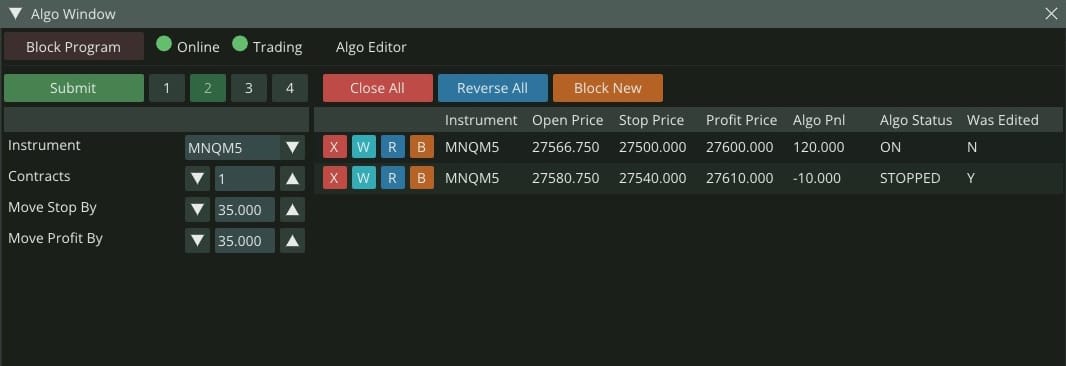
Another major addition is support for four distinct GUI views. Different users rarely need the same information during live trading. Trading usually requires a cleaner operational layout. Technical monitoring may need deeper diagnostics and queue metrics. Risk and operations teams often require entirely different visibility.
The new system allows the same strategy to expose completely different layouts and controls depending on the selected view, without duplicating infrastructure or maintaining separate GUIs.
Here is an example of view #2 with its own buttons and fields.
Defining The GUI Directly From The Strategy
The interface is configured through the API itself using onschemarequest().
Inside the schema callback, the strategy defines:
- header fields
- input fields
- record fields
- header buttons
- record buttons
- visibility masks
- button colors
- multi-view layouts
The GUI then builds itself automatically from that schema.
A single strategy can expose completely different operational layouts depending on the selected view. In the example below, View 1 is used for launching customer algos while View 2 is used for editing and managing already running algos.
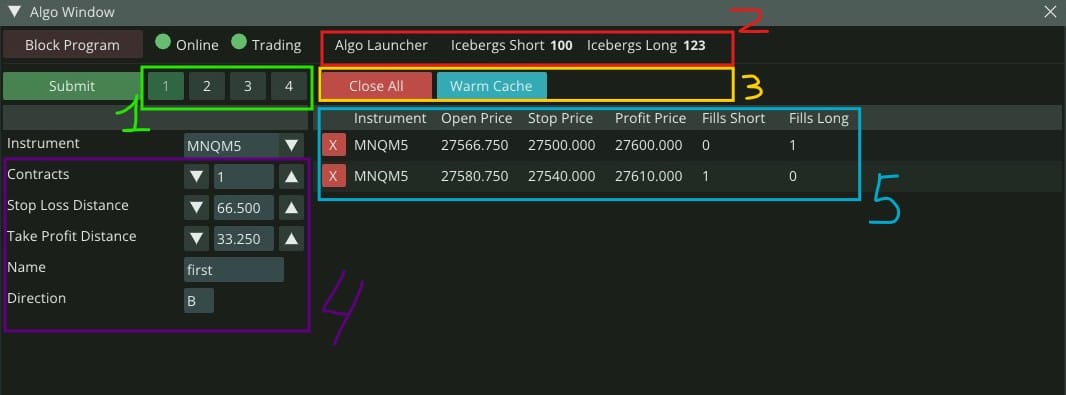
Simple Schema that generates this view:
void onschemarequest(nanoconda::interfaceschema* schema)
{

   //header fields
   //View 1 Header fields
   schema->headerFields[0].setField("Algo Launcher", nanoconda::NC_I, 1, 0, 100, 1);
   schema->headerFields[0].setHideMask(NC_SHOW_ONLY_VIEW1);
   schema->headerFields[1].setField("Icebergs Short", nanoconda::NC_I, 1, 0, 100, 1);
   schema->headerFields[1].setHideMask(NC_SHOW_ONLY_VIEW1);
   schema->headerFields[2].setField("Icebergs Long", nanoconda::NC_I, 1, 0, 100, 1);
   schema->headerFields[2].setHideMask(NC_SHOW_ONLY_VIEW1);

   //View 2 Header Field
   schema->headerFields[3].setField("Algo Editor", nanoconda::NC_I, 1, 0, 100, 1);
   schema->headerFields[3].setHideMask(NC_SHOW_ONLY_VIEW2);

   //Header buttons
   schema->headerButtons[0].setButton("Close All", NC_BC_RED);

   //View 1 Header Buttons
   schema->headerButtons[1].setButton("Warm Cache", NC_BC_CYAN, NC_SHOW_ONLY_VIEW1);

   //View 2 Header Buttons
   schema->headerButtons[2].setButton("Reverse All", NC_BC_BLUE, NC_SHOW_ONLY_VIEW2);
   schema->headerButtons[3].setButton("Block New", NC_BC_ORANGE, NC_SHOW_ONLY_VIEW2);


   //Record buttons
   schema->recordButtons[0].setButton("X",NC_BC_RED);

   //View 2 Record buttons
   schema->recordButtons[1].setButton("W",NC_BC_CYAN,NC_SHOW_ONLY_VIEW2);
   schema->recordButtons[2].setButton("R",NC_BC_BLUE,NC_SHOW_ONLY_VIEW2);
   schema->recordButtons[3].setButton("B",NC_BC_ORANGE,NC_SHOW_ONLY_VIEW2);

   //Inupt Fields (Left Panel)
   schema->inputFields[0].setField("Contracts", nanoconda::NC_I, 1, 0, 100, 1);
   //View 1 Input Fields
   schema->inputFields[1].setField("Stop Loss Distance", nanoconda::NC_P, 0, 0, 1000, 1);
   schema->inputFields[1].setHideMask(NC_SHOW_ONLY_VIEW1);
   schema->inputFields[2].setField("Take Profit Distance", nanoconda::NC_P, 0, 0, 1000, 1);
   schema->inputFields[2].setHideMask(NC_SHOW_ONLY_VIEW1);
   schema->inputFields[3].setField("Name", nanoconda::NC_STR);
   schema->inputFields[3].setHideMask(NC_SHOW_ONLY_VIEW1);
   schema->inputFields[4].setField("Direction", nanoconda::NC_C);
   schema->inputFields[4].setHideMask(NC_SHOW_ONLY_VIEW1);

      //View 2 Input Fields
   schema->inputFields[5].setField("Move Stop By", nanoconda::NC_P, 0, 0, 1000, 1);
   schema->inputFields[5].setHideMask(NC_SHOW_ONLY_VIEW2);
   schema->inputFields[6].setField("Move Profit By", nanoconda::NC_P, 0, 0, 1000, 1);
   schema->inputFields[6].setHideMask(NC_SHOW_ONLY_VIEW2);

   schema->inputFields[49].setField("Last Field", nanoconda::NC_P, 0, 0, 1000, 1);


   //Algo Report Fields
   schema->recordFields[0].setField("Instrument", nanoconda::NC_STR);
   schema->recordFields[1].setField("Open Price", nanoconda::NC_F);
   schema->recordFields[2].setField("Stop Price", nanoconda::NC_F);
   schema->recordFields[3].setField("Profit Price", nanoconda::NC_F);

   //View 1 Report Fields
   schema->recordFields[4].setField("Fills Short", nanoconda::NC_I);
   schema->recordFields[4].setHideMask(NC_SHOW_ONLY_VIEW1);
   schema->recordFields[5].setField("Fills Long", nanoconda::NC_I);
   schema->recordFields[5].setHideMask(NC_SHOW_ONLY_VIEW1);

   //View 2 Report Fields
   schema->recordFields[6].setField("Algo Pnl", nanoconda::NC_F);
   schema->recordFields[6].setHideMask(NC_SHOW_ONLY_VIEW2);
   schema->recordFields[7].setField("Algo Status", nanoconda::NC_STR);
   schema->recordFields[7].setHideMask(NC_SHOW_ONLY_VIEW2);
   schema->recordFields[8].setField("Was Edited", nanoconda::NC_STR);
   schema->recordFields[8].setHideMask(NC_SHOW_ONLY_VIEW2);

}
The important part is that the strategy itself controls the operational workflow. If a desk needs additional controls tomorrow, the algo simply exposes them through the schema and the GUI immediately adapts after restart.
No separate frontend release cycle.
No rebuilding windows.
No waiting on UI engineering.
Read more on the official documentation page: https://nanoconda.com/docs/algocontrols/